Table of Contents
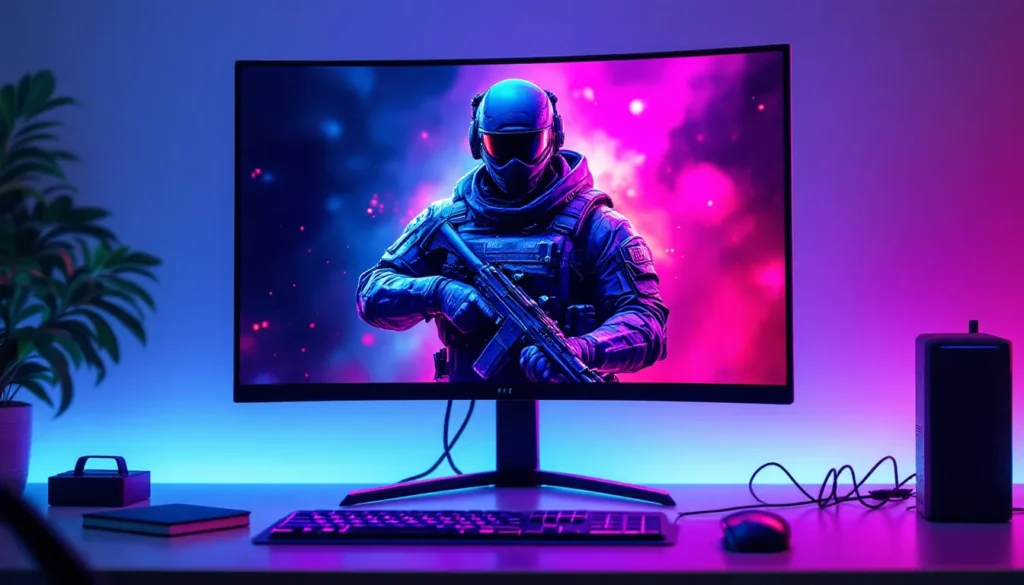
ToggleYour gaming setup deserves a desktop that matches your passion. Whether you’re deep into Call of Duty: Black Ops 6, grinding through multiplayer, or just want your PC adorned with stunning visuals, finding the right 4K wallpaper can transform your desktop experience. A sharp, vibrant Call of Duty 4K wallpaper doesn’t just look good, it sets the tone for every gaming session. But with thousands of options scattered across the internet, knowing where to look and how to optimize your display can feel overwhelming. This guide walks you through everything: finding high-quality cool Call of Duty wallpapers, understanding resolution requirements, installing them properly across all your devices, and keeping your system running smoothly while displaying them. Whether you game on Windows, Mac, Linux, or mobile, you’ll have the knowledge to curate a personalized wallpaper collection that reflects your favorite franchise.
Key Takeaways
- Call of Duty 4K wallpapers require 3840×2160 pixel resolution and a compatible display to showcase pristine character models, weapons, and environmental details that capture the franchise’s visual polish.
- Official sources like Activision Blizzard, Steam, and Battle.net provide safe, copyright-verified Call of Duty 4K wallpapers, while community platforms like Reddit, DeviantArt, and specialized sites offer diverse artistic options.
- Proper installation on Windows involves downloading the correct format (JPG for simplicity, PNG for lossless quality), confirming 16:9 aspect ratio, and using Settings > Personalization > Background to set your wallpaper.
- Dynamic wallpapers via Wallpaper Engine or Lively add interactive animations and shader effects with minimal performance impact (1-3% GPU usage), perfect for customizing your gaming setup without sacrificing system performance.
- Mobile devices require optimization for native resolution and portrait aspect ratio (1440p for phones, 2K for tablets) rather than true 4K, making device-specific sourcing essential for proper display quality.
- Building seasonal themed collections organized by game season and subcategory, combined with wallpaper rotation tools, keeps your desktop fresh while maintaining visual cohesion with in-game cosmetics and competitive loadouts.
What Makes 4K Wallpapers Essential For Modern Gaming Setups
Understanding 4K Resolution And Display Requirements
4K resolution, often called Ultra High Definition (UHD), is 3840×2160 pixels, four times the pixel density of 1080p. For gamers, this means sharper details, richer colors, and textures that pop. When you’re looking for Call of Duty wallpapers in 4K, you’re getting pristine character models, weapon details, and environmental backdrops that capture the franchise’s visual polish.
But here’s the catch: you need a display capable of actually rendering 4K to appreciate it. Modern 4K monitors (27 inches and up) are increasingly affordable, and most newer laptops, especially gaming-focused ones, support the resolution. If your monitor tops out at 1440p or 1080p, a 4K wallpaper will just scale down, you won’t see the true benefit. Check your display’s native resolution before hunting down files.
Beyond resolution, aspect ratio matters. Most desktop monitors use 16:9, so you’ll want 4K wallpapers sized at 3840×2160. Some ultrawide setups (21:9 or 32:9) need custom dimensions. Mobile devices, tablets, and ultrawide monitors have their own sweet spots. Matching your wallpaper to your actual display prevents awkward stretching, black bars, or pixelation.
Performance Impact On Your Gaming System
Displaying a 4K wallpaper on your desktop uses minimal system resources, we’re talking negligible CPU and GPU impact when you’re just browsing or in menus. A single 4K image sitting static on your desktop consumes maybe 50-100 MB of RAM, which is nothing compared to running an actual game. But, dynamic 4K wallpapers (animated or shader-based) can demand more. If you’re running something like Wallpaper Engine with high-end particle effects, you might see a small dent in performance, especially on older GPUs.
The real culprit? File storage. A typical 4K PNG can be 15-30 MB: JPG compression gets it down to 2-5 MB. If you’re building a collection of dozens of cool Call of Duty wallpapers, you’re looking at hundreds of megabytes to a few gigabytes. That’s fine for modern drives, but it’s worth organizing. We’ll cover optimization later, but the key takeaway is: don’t let file size anxiety stop you. Smart compression and organization keep everything nimble.
Where To Find High-Quality Call Of Duty 4K Wallpapers
Official And Authorized Sources
Activision Blizzard occasionally releases official wallpapers through their media sites and social channels. During major season launches or special events, you’ll find high-res promotional art on the Call of Duty Archives and official game stores. These are always safe bets for quality and copyright, no sketchy downloads or watermark surprises. Check the official Call of Duty website and each game’s dedicated page: they often have a “Media” or “Downloads” section with assets.
Steam (if you own the game on PC) and Battle.net frequently feature themed wallpapers tied to seasonal updates. These are officially sanctioned and usually in multiple resolutions, including 4K variants.
Community-Driven Platforms And Collections
Reddit communities like r/CallOfDuty and r/GamingWallpapers are goldmines. Dedicated users share custom renders, in-game screenshots at maximum settings, and fan art, often with links to high-res downloads. The advantage? You get peer-reviewed recommendations and direct feedback from the community.
DeviantArt remains a heavyweight for gaming wallpapers. Artists upload 4K-ready creations regularly, and you can filter by resolution and game. ArtStation attracts professional concept artists and skilled hobbyists: their Call of Duty fan art sometimes reaches jaw-dropping quality. Both platforms let you message artists if you need a custom resolution or variant.
Fanart communities on Tumblr and Twitter also pop off during new game launches, offering fresh, artistic takes on Call of Duty characters and scenes.
Specialized Gaming Wallpaper Websites
Wallpaperflare and similar dedicated wallpaper aggregators catalog thousands of gaming-related 4K images. They’re searchable by game, character, and resolution, which saves you hours of hunting. Most are free, ad-supported, and offer multiple download mirrors.
Setafondo, WallpaperCave, and Uskyline specialize in high-res game imagery. Search “Call of Duty 4K” and you’ll surface hundreds of results. Be cautious of sketchy ads, but the actual image files are typically clean.
For competitive players wanting loadout-themed or weapon-focused wallpapers, niche sites sometimes offer specialist content. Cross-reference with trusted gaming outlets, Dexerto occasionally curates collections tied to esports tournaments, and The Loadout features weapon-centric gameplay art that doubles as excellent wallpaper material.
Best Call Of Duty Games For 4K Wallpaper Content
Modern Titles With Stunning Visual Design
Modern Warfare III and Black Ops 6 are your go-to sources for jaw-dropping 4K wallpaper material. Their engine renders operators, killstreaks, and maps with incredible fidelity. Promotional art from these titles is crisp, detail-rich, and screams “desktop background.” The seasonal cosmetics alone, ghost skins, neon bundles, tactical gear, provide endless visual variety for themed collections.
Warzone 2.0 assets, particularly the Verdansk and Al Mazrah map art, offer apocalyptic cityscapes and desert warfare aesthetics that translate beautifully to 4K. The battle royale’s marketing materials are often higher quality than multiplayer wallpapers because Activision invests heavily in promoting the free-to-play experience.
Classic Favorites That Still Impress In 4K
Don’t sleep on the older entries. Modern Warfare (2019) set the visual bar high, and its campaign cinematics, Captain Price, Gaz, Ghost, still hold up in 4K. Fan-sourced screenshots from campaign missions look phenomenal when upscaled or rendered at native ultra settings. The Call of Duty Cover Art designs from this era are iconic and perfect for wallpaper sizing.
Black Ops Cold War has a distinct retro-futuristic aesthetic that resonates with players who love the 80s vibe. Its cover art and operator designs age well in 4K. Meanwhile, Cold War’s Zombies mode spawned some genuinely eerie atmospheric wallpapers, perfect if you want something moody rather than action-packed.
Call of Duty 4: Modern Warfare (the original) remains a sentimental favorite. While its assets are older, artists have created beautiful remasters and fan reimaginings in 4K. The campaign’s iconic moments, “All Ghillied Up,” the nuclear explosion, are immortalized in stunning fan art across the community.
How To Download And Install 4K Wallpapers On Windows
Finding The Right File Format And Resolution
Before downloading, verify three things: file format, resolution, and aspect ratio.
File format matters for quality and compatibility. JPG is standard, smaller file size, universal support, minor quality compression that’s invisible on most displays. PNG offers lossless compression (perfect if you’re picky), but files are 3-4x larger. WebP is emerging as a sweet spot but isn’t supported everywhere. Stick with JPG for simplicity unless you have a specific reason otherwise.
Resolution: confirm the file is labeled 3840×2160 (true 4K) or at least 2560×1440 (1440p, acceptable if native 4K files aren’t available). Upscaled images claiming “4K” often look soft, stick with native or professionally remastered files.
Aspect ratio: 16:9 is standard for most monitors. If you have an ultrawide (21:9 or super-ultrawide), hunt for those specific dimensions or be ready to crop/stretch.
Step-By-Step Installation Process
Step 1: Download your chosen wallpaper. Save it to a dedicated folder, something like C:Users[YourUsername]PicturesWallpapers. This keeps things organized, especially if you’re building a collection.
Step 2: Right-click the image file. Select “Set as desktop background” (Windows 10/11). Alternatively, go to Settings > Personalization > Background, click “Browse,” and select your image.
Step 3: Adjust fit settings if needed. In Personalization, the dropdown menu offers options:
- Fill: Stretches the image to fill your screen (can distort if aspect ratio doesn’t match)
- Fit: Scales the image to fit without stretching (may add black bars)
- Stretch: Forces the image to stretch (usually looks bad)
- Tile: Repeats the image (rarely useful)
- Center: Places the image in the middle (leaves borders)
For a proper 4K 16:9 image on a 16:9 monitor, “Fill” or “Fit” works perfectly.
Step 4: Apply and confirm. Click “Apply,” then “OK.” Your new wallpaper loads immediately.
Troubleshooting Common Display Issues
Issue: Wallpaper looks blurry or pixelated.
You’re likely using a non-4K image on a 4K display, or vice versa. Downgrade to a matching resolution. Alternatively, if Windows scaled it oddly, re-download the native resolution version.
Issue: Black bars appear on the sides or top/bottom.
Aspect ratio mismatch. Your wallpaper doesn’t match your display’s proportions. Either find a wallpaper in your correct aspect ratio, or use the “Fill” setting (though this stretches the image). For ultrawide users, this is common, search specifically for 21:9 Call of Duty wallpapers, or accept the bars.
Issue: Wallpaper doesn’t update or stays stuck on the old image.
Delete the old image file, restart Windows, then set the new one. Corrupted cache can be cleared via Settings > System > Storage > Temporary files.
Issue: File won’t download or is corrupted.
Try a different mirror (most wallpaper sites offer multiple). Disable antivirus temporarily (some flag image files aggressively). Use a fresh browser or download manager.
Setting Up 4K Wallpapers On Mac And Linux
Mac users have it straightforward. Download your 4K wallpaper, then go to System Preferences > Desktop & Screen Saver. Click the “Desktop” tab, select your image folder, and choose your wallpaper. macOS handles scaling automatically, detecting your display’s native resolution and fitting the image accordingly. If you prefer dynamic wallpapers, open System Preferences > Desktop & Screen Saver and choose from the curated Apple collections, or drag third-party dynamic wallpaper files into the Library/Desktop Pictures folder.
For more control, third-party apps like Unsplash (free) or Setapp (paid subscription) offer streamlined wallpaper managers that auto-rotate collections. These work seamlessly with Call of Duty themed wallpapers, just add your downloaded files to the app’s library.
Linux users have slightly more variability depending on their desktop environment.
On GNOME (Ubuntu, Fedora), right-click your desktop > “Change Background,” browse to your wallpaper folder, and select. GNOME automatically scales 4K images to your monitor.
On KDE Plasma (Kubuntu, KDE Neon), open System Settings > Appearance > Desktop. Click on your current wallpaper preview and navigate to your 4K file. KDE’s scaling is equally smooth.
For other environments (XFCE, i3, Openbox), the process is slightly different but universally involves either right-clicking your desktop or accessing the display settings through the control center. Worst case, you can set wallpapers via command line using tools like feh or pcmanfm, but most modern Linux distributions include GUI tools.
If you want dynamic or rotational wallpapers on Linux, tools like Variety or Nitrogen let you point to a folder and auto-cycle through images on a schedule, perfect for maintaining themed collections across seasons.
Mobile Gaming: Call Of Duty 4K Wallpapers For Phones And Tablets
Optimizing Wallpapers For Different Screen Sizes
Smartphone and tablet screens vary wildly in resolution and aspect ratio. The iPhone 15 Pro Max is 2796×1290: the Samsung Galaxy S24 Ultra is 3120×1440: iPad Pro varies by model. “4K” on mobile is a loose term, most phones don’t exceed 1440p, so sourcing true 4K wallpapers is overkill. Instead, target your device’s native resolution or slightly higher.
For flagship phones: search for 1440p (2560×1440) or even 2K (2560×1440) wallpapers labeled for your specific device model. Apps like Zedge and Wallpaper Engine’s mobile version include filters for phone compatibility.
For tablets: iPads benefit from higher resolutions. iPad Pro models support up to 2732×2048 (third-gen) or 2388×1668 (newer models). Android tablets vary, but 2K or modest 4K wallpapers work well.
Aspect ratio is crucial on mobile. Phones are taller (18:9, 19.5:9, 20:9), while tablets lean toward 4:3 or 16:10. A desktop 16:9 wallpaper will crop awkwardly on a phone unless you accept letterboxing or manually crop it. Many wallpaper sites now filter by “mobile” or “portrait,” which handles this automatically.
Installation Methods For iOS And Android
iPhone/iPad:
- Save or screenshot your wallpaper from your chosen source.
- Open the Photos app, find the image, and tap “Share” (the square arrow icon).
- Select “Use as Wallpaper.”
- Choose “Lock Screen,” “Home Screen,” or “Both.”
- Adjust the crop/position as needed, then tap “Set.”
Alternatively, use dedicated apps like Unsplash, Zedge, or Backgrounds HD (available on the App Store), which streamline the process with one-tap downloads and automatic scaling.
Android:
- Download the wallpaper to your device (via browser, Reddit app, or a dedicated wallpaper app).
- Open Settings > Display > Wallpaper (or Home > long-press blank space > “Wallpapers”).
- Select “Gallery” or your file manager, navigate to the downloaded image.
- Crop or adjust as needed, then tap “Set Wallpaper” and choose Lock Screen or Home Screen.
Android’s process varies slightly by manufacturer (Samsung, Google Pixel, OnePlus, etc.), but the core is identical. Apps like Zedge and Wallpaper Engine (available on Google Play) offer vast Call of Duty collections with one-tap installation.
For dynamic or rotating wallpapers on mobile, Wallpaper Engine Pro (Android, $3.99 USD) is the gold standard, offering animated scenes, shader effects, and schedule-based rotation. iOS lacks direct equivalents, but apps like Steuererklarung and Automator shortcuts can cycle static wallpapers on a timer.
Customizing Your Call Of Duty Wallpaper Experience
Using Wallpaper Engines For Dynamic Effects
If static wallpapers feel bland, Wallpaper Engine (Windows/Linux, ~$5 USD on Steam) elevates your setup with animated, interactive, and shader-based backgrounds. The app supports thousands of community-created scenes, many featuring gaming content. Search “Call of Duty” in Wallpaper Engine’s workshop and you’ll find animated operator scenes, weapon showcases, and dynamic environmental backdrops.
The beauty of Wallpaper Engine is customization. Many community creators allow adjustments, change colors, particle intensity, animation speed, or overlay text. Some scenes respond to audio (react to music or game sounds), which is perfect for maintaining immersion during streaming or gaming marathons.
Setup is simple: install from Steam, subscribe to scenes you like via the workshop, and they sync automatically. The performance hit is negligible on most systems, expect 1-3% GPU usage even with high-end particle effects.
Alternatively, Lively Wallpaper (Windows, free on GitHub and Microsoft Store) offers similar functionality with zero cost. It’s lighter on resources and supports custom HTML/JavaScript scenes if you’re technically inclined. The community has created Call of Duty themed scenes here as well.
Creating Themed Collections For Seasonal Rotations
Call of Duty seasons rotate every 6-8 weeks, introducing new operators, weapons, and aesthetics. Building themed wallpaper collections tied to each season keeps your desktop fresh.
Organization strategy:
Create folders for each season: “Season 1 2026,” “Season 2 2026,” etc. Within each, organize by subcategory: “Operators,” “Weapons,” “Map Art.” This makes it trivial to rotate your wallpaper monthly or bi-weekly.
Use wallpaper rotation tools (Wallpaper Engine, Lively, or built-in Windows slideshow) to automatically cycle through seasonal folders. Set it to change daily or weekly, by the time a season ends, you’ll have experienced your entire curated collection.
Pair this with seasonal cosmetics in-game. If you’re running a specific operator skin, match it with corresponding wallpaper art. This cohesion extends your immersion beyond the monitor into your entire gaming environment.
For competitive players, consider creating a “loadout-focused” collection, wallpapers featuring your main weapons or classes. The Loadout and similar sites sometimes release competitive breakdowns that align with meta shifts: use these to inform your wallpaper choices and stay visually in sync with the competitive landscape.
Tips For Preserving Image Quality And System Performance
File Compression Without Quality Loss
Raw image files from high-end sources are often oversized. A campaign screenshot at Ultra settings can hit 50+ MB as a PNG. Compress intelligently without sacrificing visual fidelity.
JPG compression: Use an online tool like TinyJPG or Compressor.io. These leverage smart algorithms to reduce file size by 70-80% with imperceptible quality loss. A 50 MB PNG often compresses to 3-5 MB JPG, still visually perfect on screens, drastically smaller in your storage.
Settings to apply:
- Quality slider: Keep it 85-95% (anything lower shows artifacts)
- Progressive JPG: Enable this for faster loading on web (less relevant for static wallpapers, but useful)
WebP format (supported by modern browsers and Windows 11) achieves 25-35% better compression than JPG at the same quality. If your OS supports it, WebP is the future. Tools like CloudConvert or Squoosh (Google’s free web app) convert JPG to WebP painlessly.
Avoid over-processing. Don’t compress multiple times in a row, each pass introduces minor degradation. Compress once, right, and archive the original.
Managing Storage And Memory Usage
Storage math: A typical 4K wallpaper is 3-8 MB after JPG compression. Fifty wallpapers? 150-400 MB. A hundred? 300-800 MB. On modern drives with hundreds of gigabytes free, this is negligible, but tidy organization prevents bloat.
Organization best practices:
- Create a dedicated Wallpapers folder (C:Users[You]PicturesWallpapers or ~/Pictures/Wallpapers on Mac/Linux).
- Subdivide by game, season, or theme. Flat folders with 500+ images become unwieldy.
- Delete duplicates and low-quality variants. If you downloaded three versions of the same art, keep only the best.
- Archive old seasonal collections separately if space becomes an issue, external drives or cloud storage (Google Drive, OneDrive) cost nothing.
Memory usage: Displaying a static wallpaper consumes 50-150 MB RAM depending on resolution and color depth. Your entire OS uses gigabytes: a wallpaper is irrelevant. Dynamic wallpapers (Wallpaper Engine, Lively) use more, expect 200-500 MB during active use, returning when minimized. On systems with 8 GB RAM or more, this is unnoticeable: on lower-end machines, disable dynamic wallpapers if performance suffers.
Monitor refresh optimization: Most wallpapers sit static, refreshing only when you unlock or minimize/restore windows. If you’re using a dynamic wallpaper with particle effects, your monitor’s refresh rate affects perceived smoothness. A 60 Hz monitor is fine: 144 Hz or higher makes animations buttery-smooth. This is hardware-dependent, not software-optimizable.
For maximum performance during gaming, consider a static wallpaper when playing competitively. Every CPU cycle counts in multiplayer, dynamic backgrounds are cool for browsing, less ideal when chasing frames per second. A connection to Connection Failed Call of Duty fixes might help optimize your gameplay, but eliminating unnecessary background processes (including fancy wallpapers) is equally important. Toggle between dynamic and static depending on your activity.
Conclusion
Building a personalized collection of cool Call of Duty wallpapers transforms your gaming desktop from functional to inspiring. Whether you’re chasing authentic 4K renders from the latest Modern Warfare III season, sourcing classic fan art from the original Modern Warfare era, or rotating themed collections tied to seasonal updates, the resources and techniques exist to make it happen cleanly and efficiently.
The key is balancing aesthetics with practicality: source from reputable platforms (official channels, DeviantArt, specialized wallpaper sites), match resolution to your actual display, compress files intelligently, and organize strategically. Dynamic wallpapers via Wallpaper Engine add flair without tanking performance. Mobile wallpapers deserve the same care, optimize for your device’s native resolution and aspect ratio, not generic 4K.
Your desktop is the gateway to every gaming session. Make it count. Download that stunning 4K Call of Duty wallpaper, set it up properly across your devices, and enjoy the visual polish every time you sit down to play. The franchise’s creative direction deserves to be displayed, and your setup should reflect the intensity and artistry that goes into each Call of Duty experience.